


ServiceTitan hands you Excel. You save it once as CSV.
Get every customer out of ServiceTitan before you decide anything. ServiceTitan's export is an Excel file (.xlsx), not a CSV, so there is one extra save at the end.
30 days free, no credit card required

Generated image, not a real person.
What it costs
The cost is one extra save. ServiceTitan hands you Excel, and you turn it into a CSV once.
What owners do today
Your customers sit in ServiceTitan, and the list leaves as an Excel file.
Get your customers out of ServiceTitan
- In the top toolbar, click Search.
- Click the drop-down and select Customers. Do not apply any filters, so every customer record is listed.
- Click the Expand icon, then select Export to Excel (*.xlsx).
- The customer list downloads as an Excel file.
Save it as a CSV
- In Google Sheets: open the file, click File, then Download, and choose CSV.
- In Excel: save a copy of the file and choose CSV as the file type.
Google Sheets steps from Google Docs Editors Help: Use both Excel and Sheets, read October 28, 2026.
Skip the filters. ServiceTitan's help page says to leave them off so the search lists every customer record.
Once it is a CSV, you are ready to preview it.
Steps from ServiceTitan Knowledge Base: exporting a list of customers to Excel, read October 28, 2026. Menus change; if yours looks different, follow ServiceTitan's page.
Preview your ServiceTitan customers, right here
Drop your ServiceTitan customer CSV here
or
Try it with a sample file.
Not ready to export yet? Try the preview with a sample file. No file of yours is needed.
The preview reads your file in your browser, on this page. The page does not upload it or send it anywhere. To check, open your browser's developer tools, go to the Network tab, and drop the file: you should see no request carrying it. We ran that check with an automated browser on the build of November 10, 2026. We have not run it on the live site, or with browser extensions you may have added.
CSV only, up to 5 MB. The first row should name the columns.
The preview is a look at your file, not the import. When you import in CONSTRUKTR, you check the preview there, and nothing is saved until you confirm.
CONSTRUKTR does not connect to your old software and pull your customers across. You export a file, then drop it in.
Import from a spreadsheet export Pro and up
Export every ServiceTitan customer to Excel, with no filters switched on.
Save the Excel file as a CSV, then drop the CSV in.
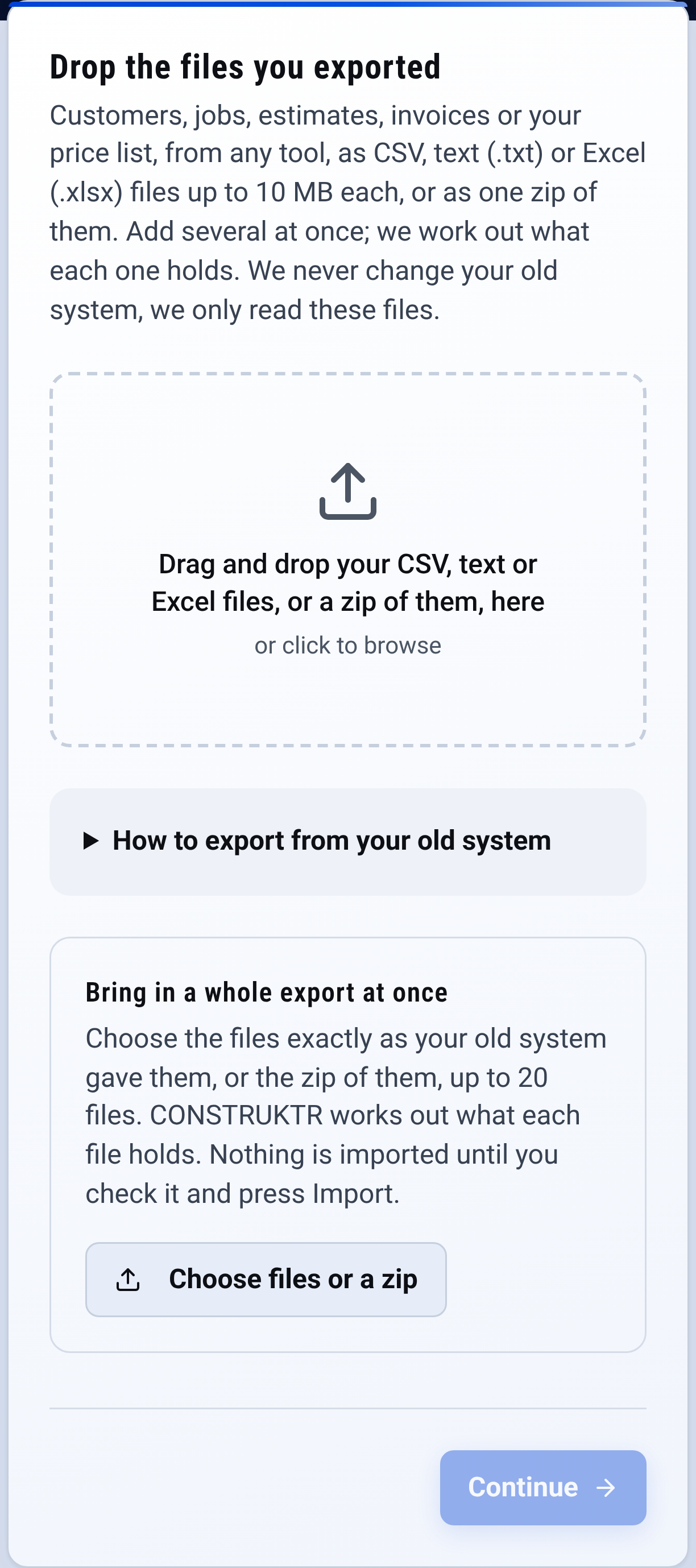
Import: drop the files you exported from ServiceTitan Check the preview first. Saving comes only after you confirm.

Questions owners ask
Why does my export show only some customers?
ServiceTitan's help page says not to apply any filters before you export, so the search lists every customer record.
See it on your own jobs.
Try your ServiceTitan list during 30 days free. No card.
Paid plans renew automatically. 100-day money-back guarantee on your first paid charge. Request a refund at support@construktr.ai. Cancel any time; access continues to the end of the paid period.